
How to Sync Microsoft 365 Calendar with Thunderbird on Arch Linux
Title:
🚀 Seamless Microsoft 365 Calendar Integration in Thunderbird on Arch Linux
🚀 Seamless Microsoft 365 Calendar Integration in Thunderbird on Arch Linux
Introduction:
If you're using Thunderbird as your email client on Arch Linux and want to access your Microsoft 365 (Office 365) calendar, you might have noticed that Thunderbird does not natively support Exchange calendars. Fortunately, with the right Thunderbird add-ons, you can achieve full two-way calendar synchronization without needing to log into Outlook Web every time.
If you're using Thunderbird as your email client on Arch Linux and want to access your Microsoft 365 (Office 365) calendar, you might have noticed that Thunderbird does not natively support Exchange calendars. Fortunately, with the right Thunderbird add-ons, you can achieve full two-way calendar synchronization without needing to log into Outlook Web every time.
In this guide, I'll walk you through the best method to sync your Microsoft 365 calendar with Thunderbird, ensuring smooth and reliable access to your work schedule.
1️⃣ Why Can't Thunderbird Sync Office 365 Calendars Natively?
By default, Thunderbird's built-in Lightning Calendar supports CalDAV and ICS, but Microsoft 365 does not provide CalDAV access for its Exchange calendars. This means we need a third-party add-on to bridge the gap.
2️⃣ Best Solution: Using TbSync with Exchange ActiveSync (EAS)
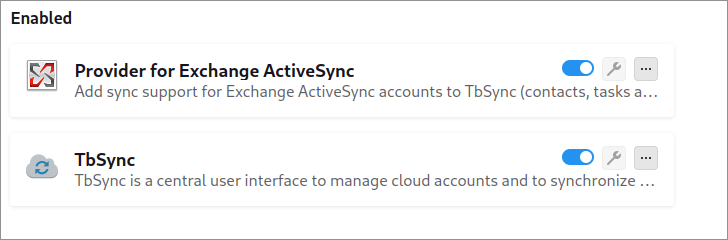
The most reliable way to sync your Microsoft 365 calendar is by using TbSync + Provider for Exchange ActiveSync. This method supports two-way sync and works with Microsoft's modern authentication (OAuth2).
🔹 Required Add-ons
- TbSync – A Thunderbird extension that manages account synchronization.
- Provider for Exchange ActiveSync – An add-on that enables TbSync to communicate with Microsoft 365 via Exchange ActiveSync (EAS).
3️⃣ Installation & Setup
Step 1: Install the Required Add-ons
Open Thunderbird and install the following add-ons:
- Go to Menu (≡) > Add-ons and Themes
- Search for TbSync, install it.
- Search for Provider for Exchange ActiveSync, install it.
Step 2: Configure TbSync
- Open Tools > TbSync Account Manager
- Click "Add new account" > Exchange ActiveSync (EAS)
- Enter your Microsoft 365 email address
- Select Office 365 as the server type
- Authenticate using OAuth2 (sign in to Microsoft and allow permissions)
- Once authenticated, you will see a list of available syncable resources
- Check the box for "Calendar"
- Click "Synchronize Now"
Your Microsoft 365 calendar should now appear in Thunderbird's Lightning Calendar!
4️⃣ Automate Syncing
By default, TbSync only syncs manually or on a schedule. To enable auto-sync:
- Open TbSync Account Manager
- Select your Office 365 account
- Click Settings (gear icon) > Auto-sync every 15 minutes
- Click Save & Sync Now
🚀 Now your Office 365 calendar will automatically update in Thunderbird!
5️⃣ Conclusion
With TbSync + Provider for Exchange ActiveSync, Thunderbird users on Arch Linux (or any Linux distro) can enjoy full two-way Microsoft 365 calendar sync, making it easy to manage work schedules without using Outlook Web.
Let me know if you found this guide helpful, and feel free to share any tweaks that worked for you! 🚀✨