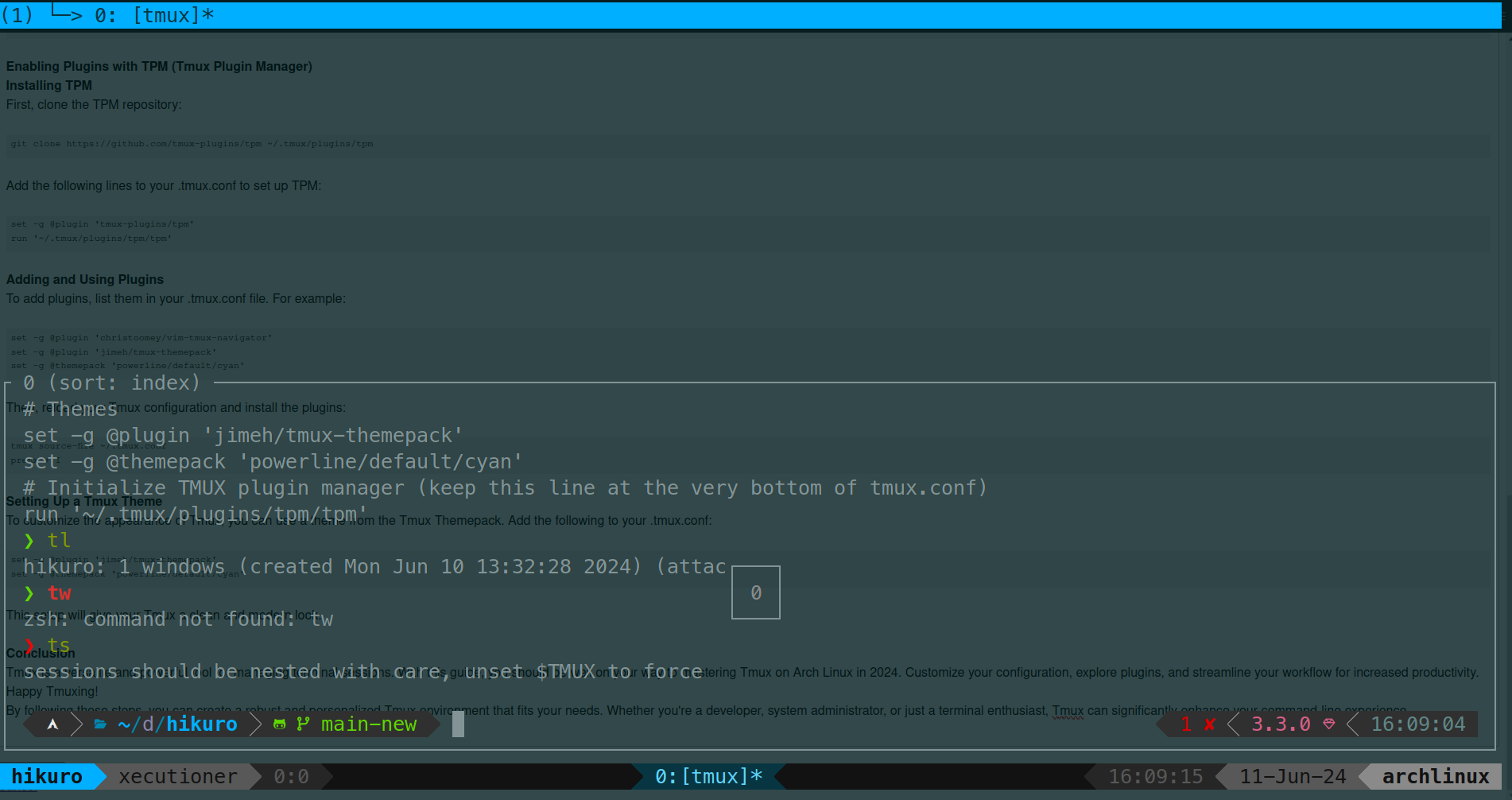
Getting Started with Tmux on Arch Linux for 2024 Tmux (Terminal Multiplexer) is an essential tool for many developers and system administrators, allowing them to manage multiple terminal sessions from a single window. This guide will walk you through the process of installing, configuring, and using Tmux on Arch Linux in 2024. We'll also cover how to enhance your Tmux setup with useful plugins and custom keybindings.
Introduction to Tmux
Tmux is a powerful terminal multiplexer that allows you to create, manage, and navigate between multiple terminal sessions within a single window. It's particularly useful for tasks that require multiple terminal windows, such as programming, system monitoring, or server management. With Tmux, you can split windows into panes, detach and reattach sessions, and customize your environment to boost productivity.
Installing Tmux on Arch Linux
To install Tmux on Arch Linux, you can use the pacman package manager. Open your terminal and run the following command:
sudo pacman -S tmux
Once the installation is complete, you can start Tmux by simply typing tmux in your terminal.
Basic Tmux Commands
Here are some basic Tmux commands to get you started:
tmux new -s session_name: Create a new Tmux session with a specified name.
tmux attach -t session_name: Attach to an existing Tmux session.
tmux ls: List all running Tmux sessions.
tmux kill-session -t session_name: Kill a specific Tmux session.
Customizing Tmux Configuration To customize Tmux, you need to create or edit the .tmux.conf file in your home directory. Below is a configuration that changes some keybindings, enables mouse support, and sets up plugins and themes.
Changing the Prefix Key By default, Tmux uses Ctrl-b as the prefix key, which is used to send commands to Tmux. You can change it to Ctrl-s as follows:
set -g prefix C-s
unbind C-b
bind-key C-s send-prefix
Custom Split Window Bindings You can customize the keys used to split windows. The following lines change the horizontal split to | and the vertical split to -:
Add the following lines to your .tmux.conf to set up TPM:
set -g @plugin 'tmux-plugins/tpm'
run '~/.tmux/plugins/tpm/tpm'
Adding and Using Plugins To add plugins, list them in your .tmux.conf file. For example:
set -g @plugin 'christoomey/vim-tmux-navigator'
set -g @plugin 'jimeh/tmux-themepack'
set -g @themepack 'powerline/default/cyan'
Then, reload your Tmux configuration and install the plugins:
tmux source-file ~/.tmux.conf
prefix + I
Setting Up a Tmux Theme To customize the appearance of Tmux, you can use a theme from the Tmux Themepack. Add the following to your .tmux.conf:
set -g @plugin 'jimeh/tmux-themepack'
set -g @themepack 'powerline/default/cyan'
This setup will give your Tmux a clean and modern look.
Conclusion Tmux is a versatile and powerful tool for managing terminal sessions. With this guide, you should be well on your way to mastering Tmux on Arch Linux in 2024. Customize your configuration, explore plugins, and streamline your workflow for increased productivity. Happy Tmuxing! By following these steps, you can create a robust and personalized Tmux environment that fits your needs. Whether you're a developer, system administrator, or just a terminal enthusiast, Tmux can significantly enhance your command-line experience.